Configure Google Tag Gateway
Use the Cloudflare Google Tag Gateway to route your server-side tracking through your own domain. This simplifies the deployment of a Tagging Server without managing complex infrastructure.
Configuration Steps
- Log in to your Cloudflare Dashboard.
-
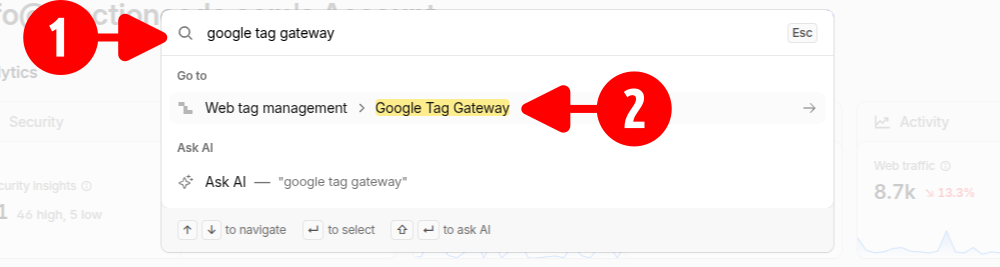
Use Quick search, look for google tag gateway and click on it.
-
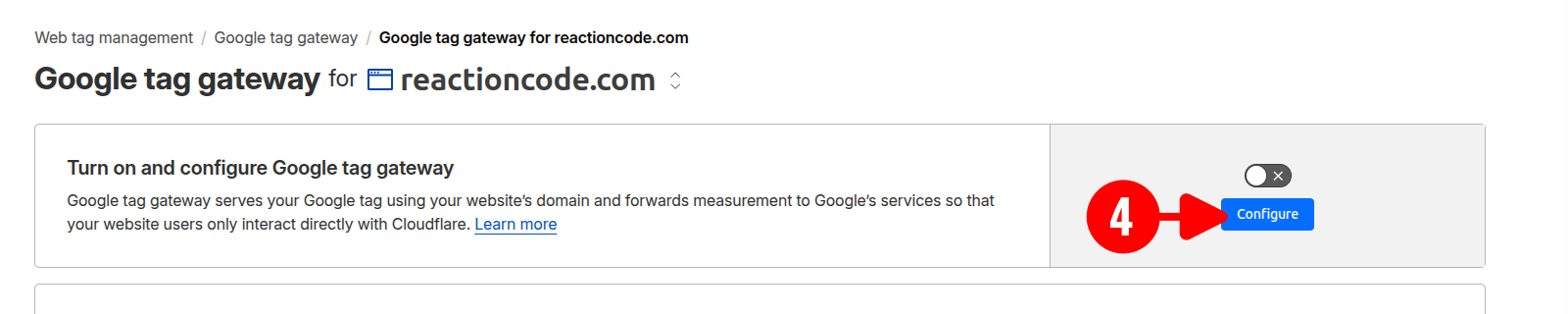
Select your Domain/Site.
-
Click Configure.
-
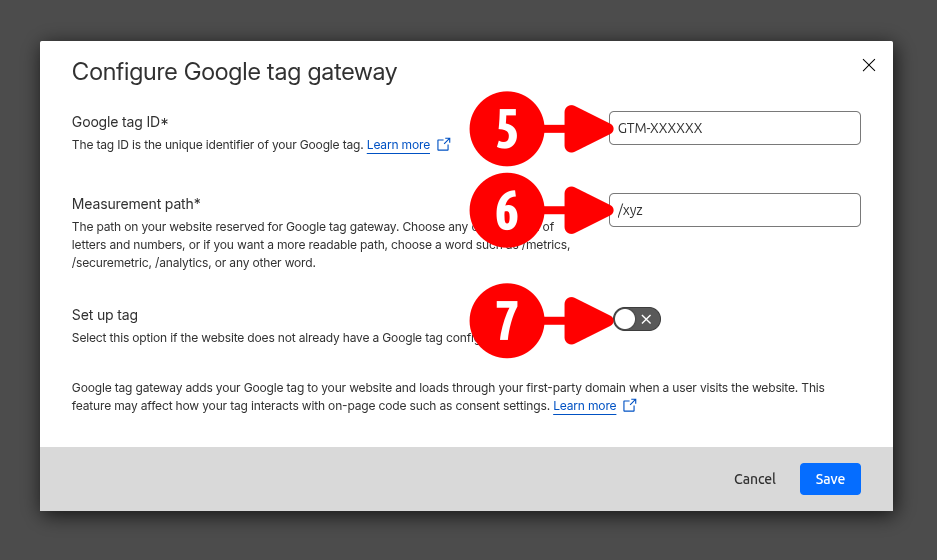
Enter your GTM Server Container ID (e.g.,
GTM-XXXXXX). -
Define your Server Container URL.
Choose an Obscure Path
To bypass intelligent ad-blockers and tracking prevention systems (ITP), ensure your Server Container URL meets these requirements:
- Uniqueness: Use a path not currently in use by your shop (avoid common paths like
/api/or/upload/). - Obfuscation: Avoid keywords like
gtm,analytics,googleortracking. - Recommended Example: Use neutral paths like
https://yourdomain.com/xyz.
- Uniqueness: Use a path not currently in use by your shop (avoid common paths like
-
Ensure the Setup Tag option remains DISABLED in the configuration panel.
Crucial: Disable Setup Tag
Do not activate the "Setup Tag" option. The tracking module handles all tag deployments and dataLayer initializations. Enabling this in Cloudflare will cause duplicate tracking and data corruption.
-
Click Save to deploy the gateway.
Verification
Visit your chosen Server Container URL in a browser. If properly configured, you should receive a status response from the GTM server (typically a 400 or 404 response, but not a Cloudflare error).
Map Cloudflare Gateway to the Module
After deploying the gateway in Cloudflare, you must configure the module to use your new custom path. Assuming your chosen path in Cloudflare is /xyz, follow these steps:
- Navigate to the module configuration in your PrestaShop Back Office.
- Go to the Tag Manager tab and locate the Script URL field.
- Enter your full domain followed by the path and a trailing slash:
https://mydomain.com/xyz/ - Go to the Google Analytics 4 tab and locate the Server Container URL field.
- Enter your full domain followed by the path without a trailing slash:
https://mydomain.com/xyz
Trailing Slash Importance
Pay close attention to the forward slash at the end of the URL:
* Script URL: Requires the slash (/) to correctly load the GTM library.
* Server Container URL: Should not have a trailing slash to ensure correct data transmission via API.