Verify Integration
Validate that Google Tag Manager is correctly integrated into your PrestaShop storefront and actively processing data layer events.
Testing Prerequisite
Ensure the Exclude internal traffic option is temporarily disabled within your PrestaShop module configuration. If active, your local testing activity will be blocked and all tags will be blocked in Tag Assistant.
DataLayer Validation
Inspect your browser's developer console to confirm the PrestaShop module is pushing e-commerce events correctly and ensure no conflicting integrations exist.
- Open your PrestaShop storefront in a standard browser window.
- Open your browser's Developer Tools (press
F12orCtrl+Shift+J/Cmd+Option+J) and navigate to the Console tab. - Type
dataLayerinto the console prompt and press Enter. - Expand the returned JavaScript array and verify that it contains the expected events.
Conflicting Integrations
If you discover more than one gtm.js initialization event or any entries containing ['config', ...] within the array, it signifies that multiple tracking integrations are currently active. You must identify and remove these duplicate scripts or conflicting modules to prevent inaccurate data and double-counting.
Tag Assistant Preview
Utilize the built-in GTM debugging tool to monitor tag execution and event tracking in real-time.
-
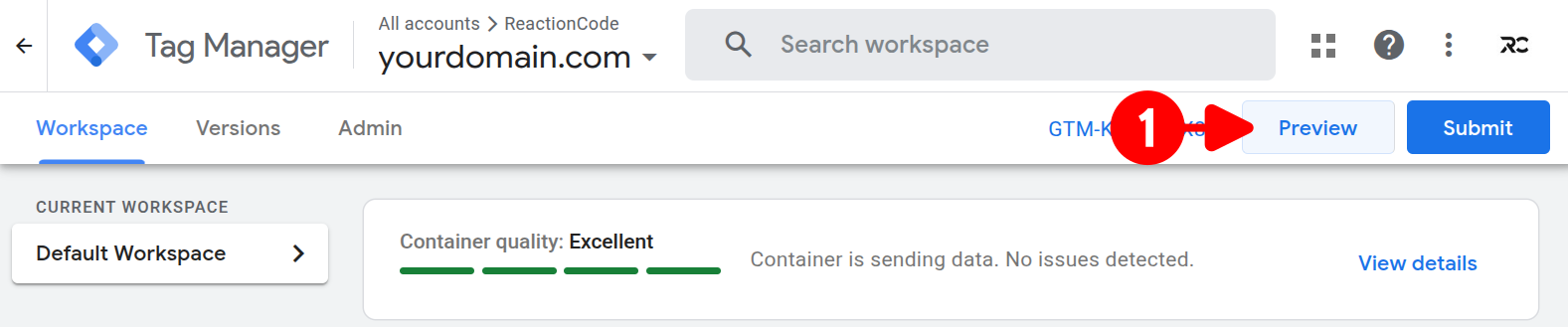
Navigate to your Google Tag Manager workspace and click the Preview button located in the top right corner.
-
Initialize the debugging session based on your active workspace environment:
- Client-Side: Enter your store's primary URL (e.g.,
https://yourdomain.com) into the prompt and click Connect to launch the debug window. - Server-Side: The Tag Assistant opens directly without a connection prompt. Open your storefront manually in a separate browser tab to start generating traffic.
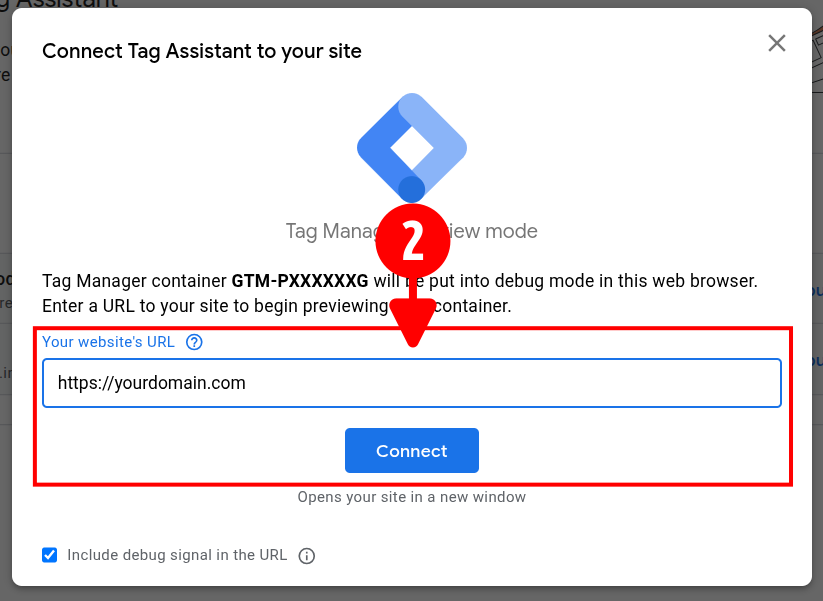
- Client-Side: Enter your store's primary URL (e.g.,
-
Verify that the Tag Assistant interface connects successfully and is ready to intercept incoming data.
- Navigate through your store to trigger specific actions (e.g., view an item, add to cart, purchase).
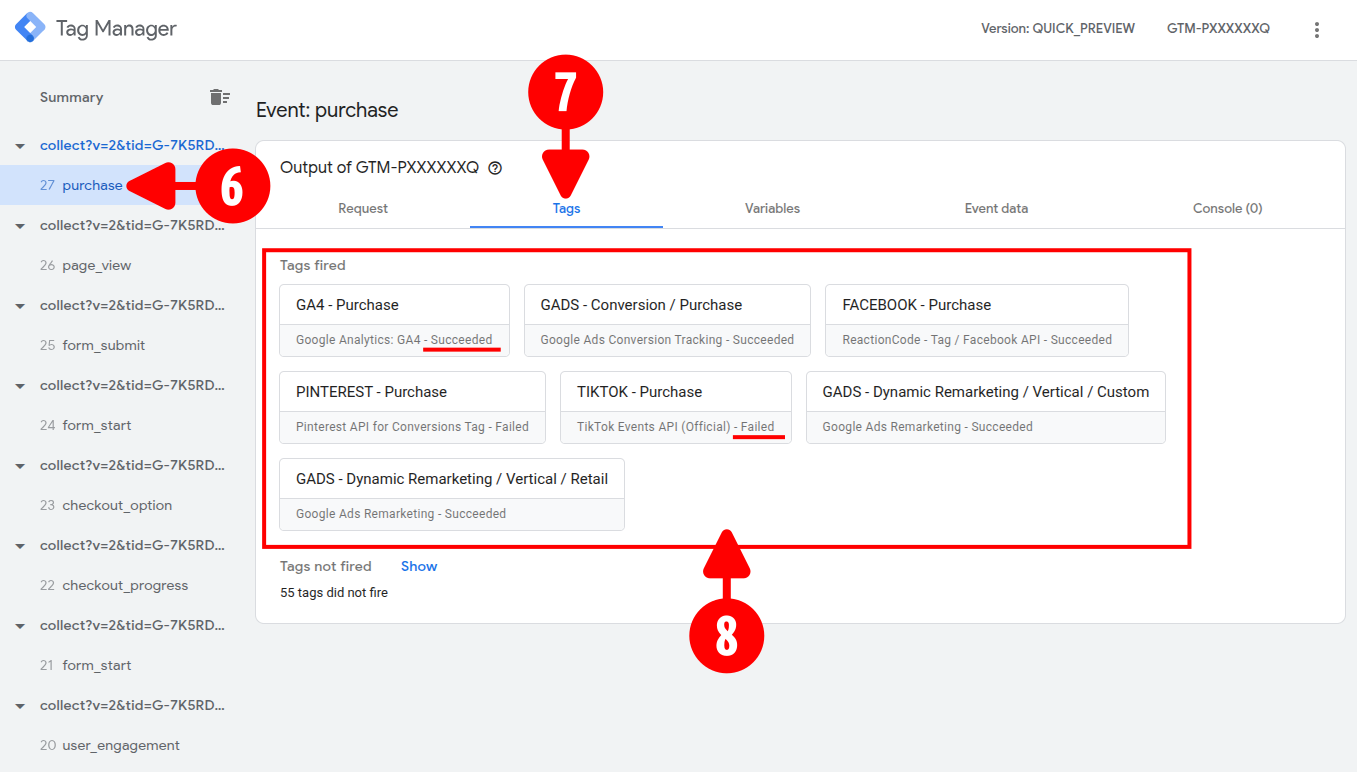
- Observe the left-hand event stream to ensure that the expected events (e.g.,
view_item,add_to_cart,purchase) are being captured. - Click the relevant event within the stream to inspect its execution details.
- On the right-hand panel, click the Tags tab.
-
Check the fired tags and confirm if they display a
succeededorfailedstatus.